




 23
23
Your Calendar View

Figure: Calendar Interface
In your calendar interface, you will see your meetings and events. The default display is by week. To change your calendar view, click on the day, week, month, etc option right of the calendar display. Press the D, W, or M key while viewing your calendar to quickly switch views.

Figure: Calendar View Options.
Basic Calendar Settings
You can access your calendar settings by selecting the Gear menu next to your user name. Click Settings.

Figure: Calendar Settings.
Google Calendar allows you to change a variety of features that alter the function and look of your calendar. Review the settings and select options that will work for you, and remember you can change these settings at any time.
Sharing Your Calendar
By default, your ‘free/busy’ calendar information is shared with everyone in the LCPH domain. You can share additional information with everyone or just specific employees. Sharing ‘free/busy’ availability to everyone in LCPH allows staff to easily schedule meetings with you.
To change your share settings:
-
Open Google Calendar.
-
In the My calendars list on the left, click the three-dot icon next to your calendar, and then select Settings and Sharing
-
Select the prefered sharing options for your calendar.
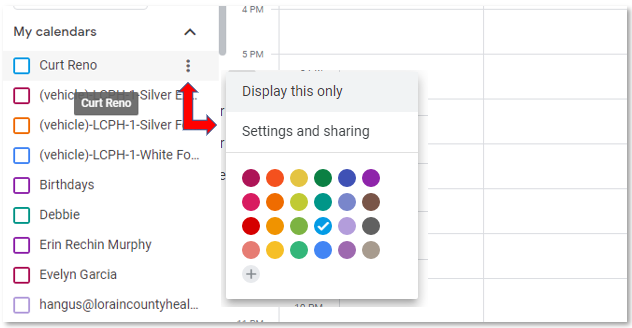
Figure: My Calendars menu options.
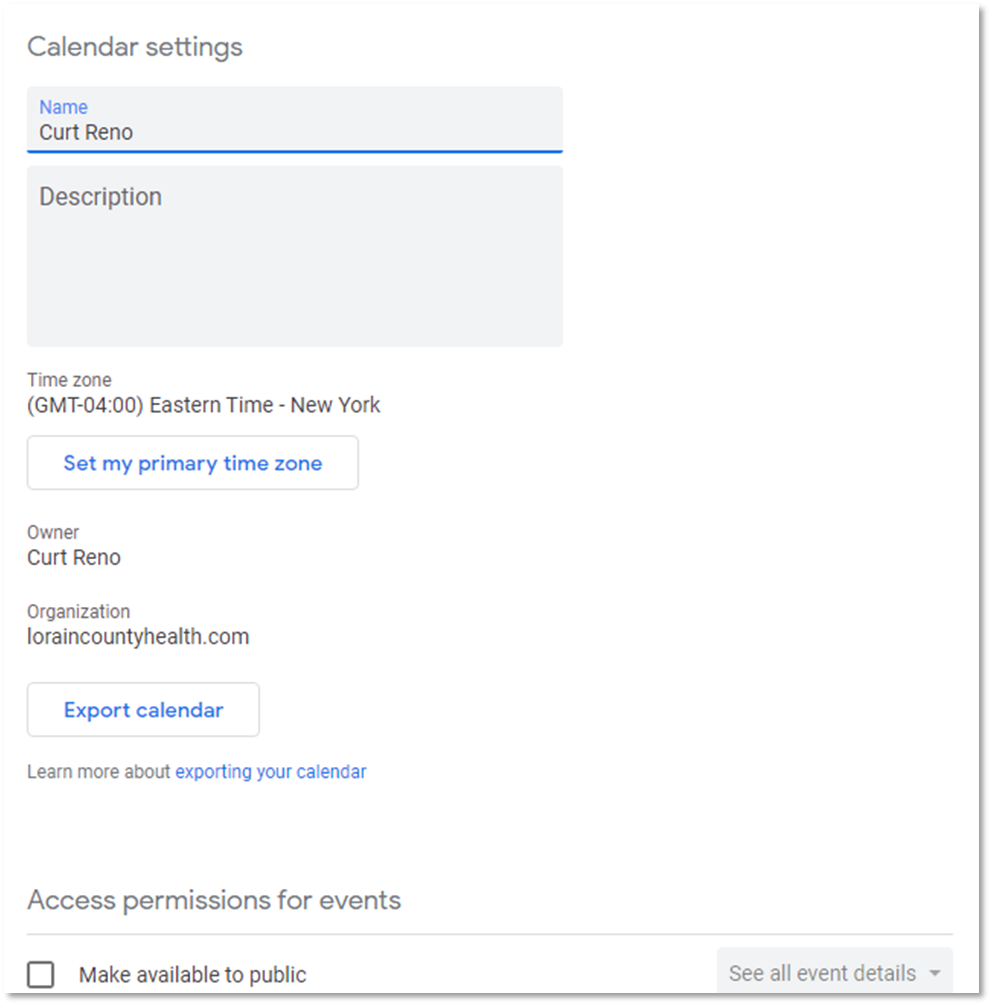
Sharing (Access Permissions)
You can choose
Choose the best Access Permissions according to your needs. To add individuals directly (such as staff, director, or others), click the Add People button and type their name to find their LCPH email address and profile. You can grant them full access or varying access in the drop-down to the right of their name.

