


 52
52
Scheduling a Room or Resource
Scheduling a Meeting Room or other resource such as the Lighthouse room, Agency vehicle, sandwich boards, etc., is similar to scheduling a meeting with another person.
Here are the steps for scheduling a resource:
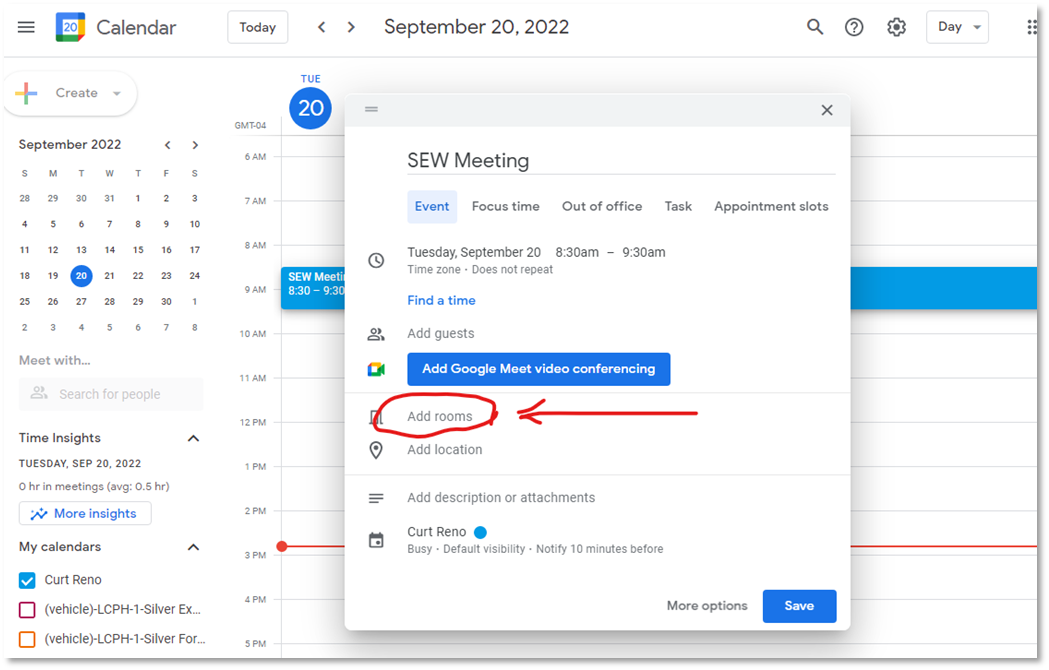
- Create an event on your own calendar for the date and time you want to reserve the resource.
- On the right where it says "Add rooms”, click it.
- A new window will open showing available rooms and resources. Make sure you have “Available rooms only “ as your selection option, if you have “Include unavailable rooms” selected, you could end up double booking a room or resource!
- When you click on a room or resource it will jump to the top of the list indicating that it has been selected for your event.
- When done selecting rooms or resources, click on the back arrow at the top left corner of the window, to return to your event details. The room or resource will be shown on your event details screen.
- Save your event.
That's it! This will put the appointment on your own calendar as well as put it on the resource calendar. If you change your mind and need to delete or change your appointment, it will automatically delete or change it from the resource.
[Schedule a meeting and select the Add rooms link]
Adding a resource calendar to your quick list:
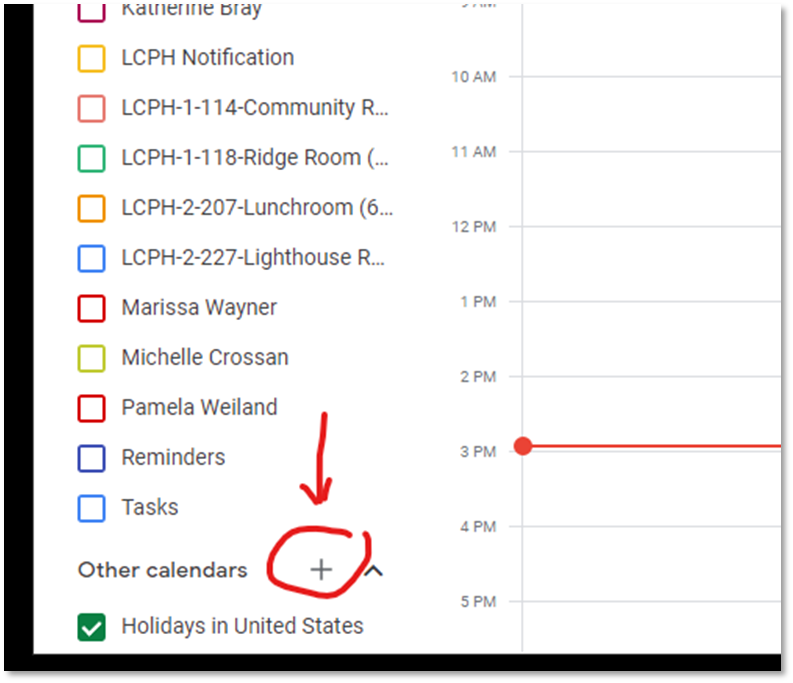
If you use a particular resource often, you may want to add it to your quick list in your calendar view so that you can easily check availability.
Here's how:
- In calendar view next to “Other Calendars” (bottom left) click the “+”
- Click on “Browse resources”
- Check the box for the resources you want to have added to your calendar view.
- Click the “<-“ right arrow in the top left corner when done adding your resources.
That resource will now appear in your "Other Calendars: list so that you can easily check for availability without having to go through scheduling a meeting!