


 21
21
Creating a Filter to Block Emails
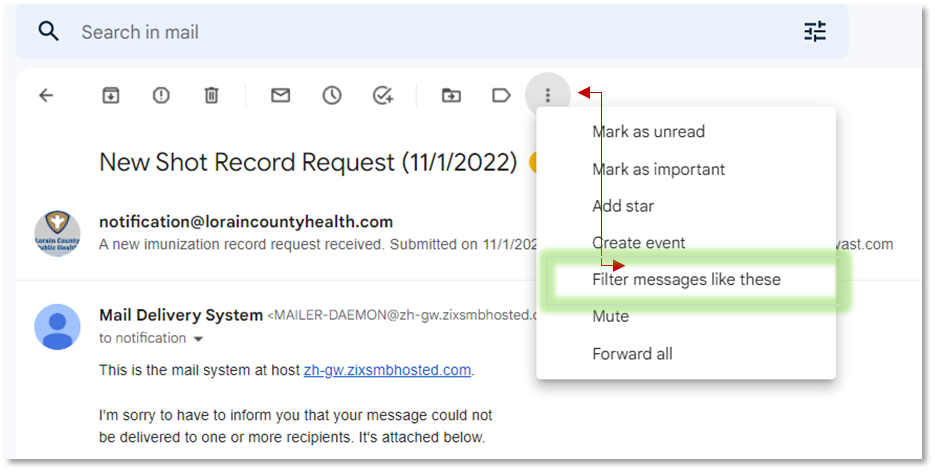
Choose the email that you want to block future messages from. The quickest way to create a block filter is to select a message from a sender that you want to be blocked. Open the message, click the "More" button, and then select "Filter messages like these". The Filter window will appear at the top of the screen with the sender's address in the "From field"
- You can also start a filter from scratch by clicking the Gear icon, selecting Settings, clicking the Filters tab, and then clicking the "Create new filter" link at the bottom of the page. You will then need to enter in the address you want to block in the "From" field.
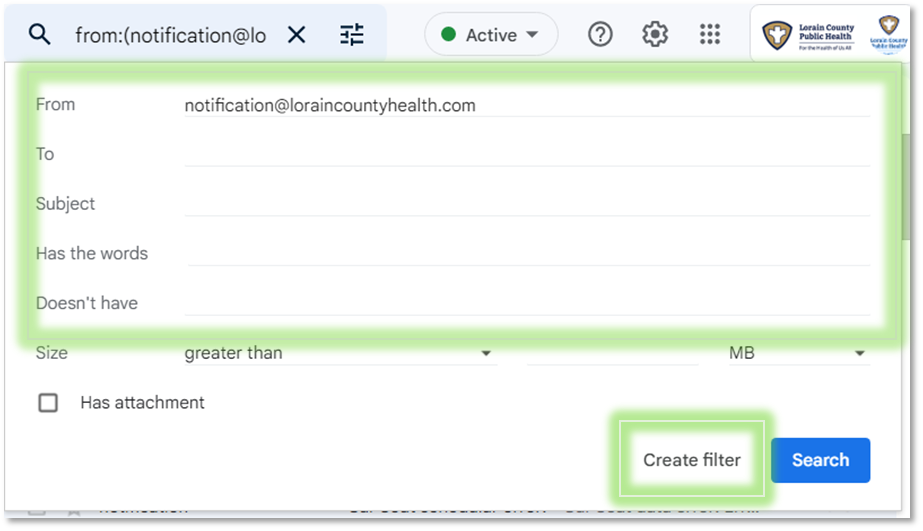
Add any additional information. Besides blocking from a specific email address, you can also choose to filter by recipient, subject line, key words, attachment size and more. Once you are finished customizing the filter, click "Create filter with this search".
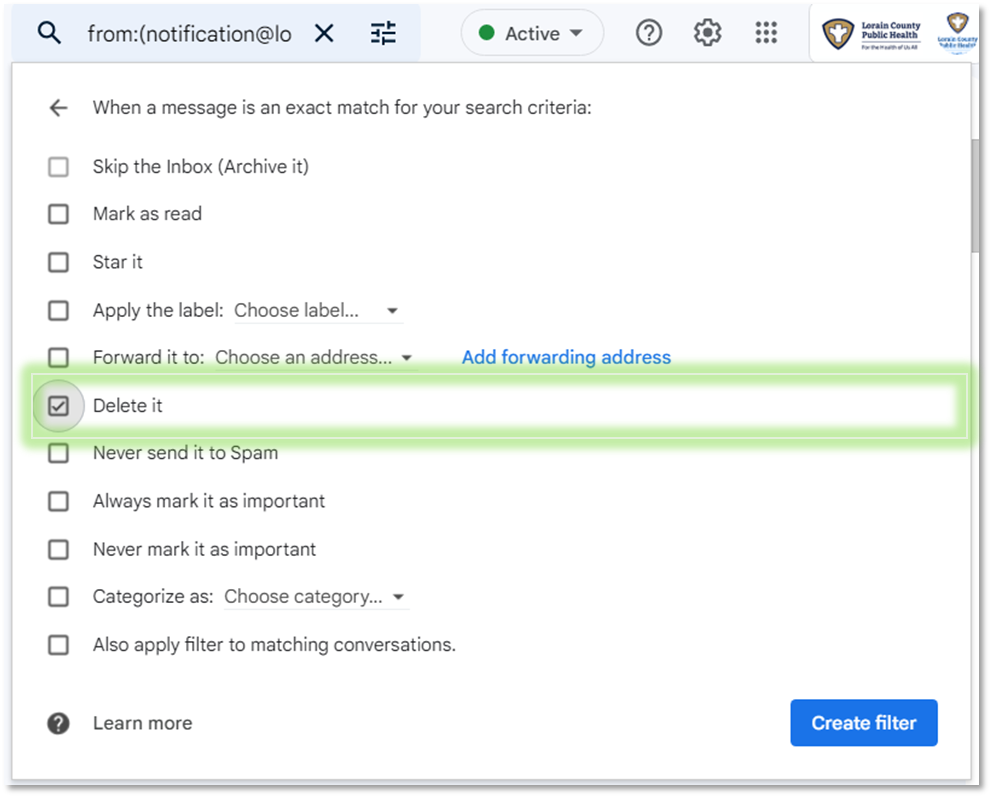
Set the filter to delete matching emails. On the next screen of the filter window, you can choose what happens with any emails that match the filter. If you want to block the email address, check the "Delete it" box. This will keep the email from appearing in your inbox and immediately delete it.